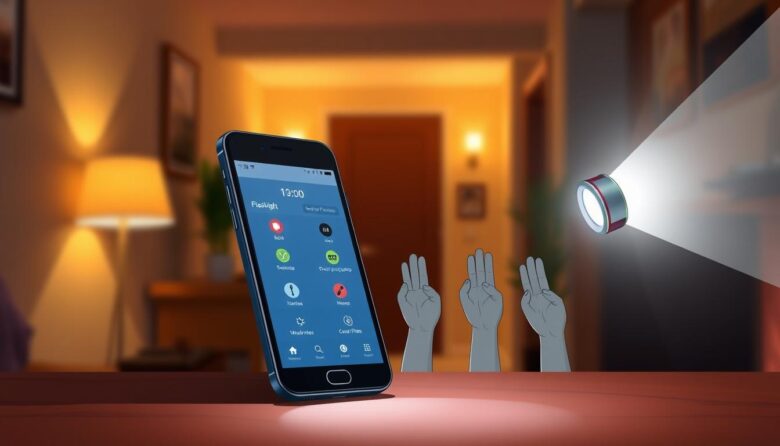
Quick, reliable light can change how you handle small emergencies and everyday tasks. This intro shows how modern phones hide useful torch controls that speed access and improve usability.
On iPhone with iOS 18, a new torch control pop-up lets you swipe up and down to set brightness and swipe left and right to change beam width. Update via Settings > General > Software Update to get this.
Android users can add instant toggles with lightweight apps or system tiles. Triple-press power, a shake gesture, home widgets, or accessibility tools give fast access without hunting menus.
We’ll cover the update steps, on-screen gestures, model notes, and reliable apps so people save time and avoid trial and error. Expect clear tips on safety, battery trade-offs, and workarounds when a model lacks a control.
Why your phone’s flashlight hides more power than you think
Manufacturers often tuck richer light controls into system menus, so a simple toggle can hide advanced options. Updates roll out new tools quietly, and many people never customize Control Center or Quick Settings to reveal them.
The on/off icon may seem basic, but a single feature can include brightness, beam width, and quick‑access gestures. These controls live behind control hubs and tiles, or inside small pop‑ups that require a press or swipe to open.
Device behavior varies by model and carrier. Some devices ship with tiles enabled, while others keep them hidden. A one‑time setup to move the tile to page one or enable a gesture often unlocks useful ways to work faster.
Practice at home and test settings in a safe space. Combine lighting controls with automations or Focus modes to have light ready when needed without wasting battery. These small adjustments save time during urgent tasks and improve usability when the screen is hard to read.
iPhone torch tricks: shape, brightness, and faster access
Update first: open Settings > General > Software Update and install iOS 18, then reboot so the new torch panel applies across the system.
To grab light fast, press the Lock Screen icon or add the torch icon to Control Center. Keeping the icon on the first row gives near-instant access even when the screen is locked.
Press and hold the on-screen torch control to reveal a compact panel. Swipe up or down to adjust brightness smoothly from a low glow to full power.
Swipe left to widen the beam for a room wash. Swipe right to narrow the beam into a focused spot for long-range targeting. Beam shaping is reported on several Pro models only.
Supported models that show horizontal focus include iPhone 14 Pro, 14 Pro Max, 15 Pro, 15 Pro Max, 16 Pro, and 16 Pro Max. Many other models on iOS 18 get the brightness control but may lack beam shaping.
If you don’t see the option, double-check Settings for iOS 18, press the torch pop-up correctly, and consider Shortcuts or Back Tap as backup access. Practice these gestures in a dim room to build quick muscle memory.
Android shortcuts that make your flashlight instantly available
C many Android users unlock near‑instant light by mapping buttons, gestures, and tiles to the camera LED. Below are reliable ways to choose a setup that fits daily habits and lock‑screen behavior.
Triple‑press the power button
Install Power Button Flashlight/Torch to toggle the torch with a triple press of the power button. This app works from a locked device and is the fastest option when the device is already in your hand.
Both volume keys with Torchie
Torchie maps both volume keys to the torch. Enable Accessibility in settings so the app can activate the LED even when the screen is off.
Shake to toggle
Shake Flashlight turns the LED on with a wrist motion. You can tune sensitivity to avoid accidental triggers while keeping activation quick when one hand is full.
Widgets and Quick Settings tiles
Place a Flashlight Widget on your home screen for one‑tap access. If your Quick Settings tile is missing, add one with Custom Quick Settings (Android 6.0+).
Automatic on/off: Ambient LED Flashlight uses the light sensor to toggle the lamp while the app is open.
Test these apps and settings across devices, keep one primary method and a backup, and check after OS updates because developer or system changes can alter behavior.
Set up the secret phone features flashlight for speed, control, and safety
Set up quick-access lighting so you get reliable light in seconds. Start by picking one primary method and a backup. Use iOS 18’s vertical swipe to set a default brightness that saves battery yet gives enough light for close tasks or short time use.
On Android, configure an app like Torchie or Shake Flashlight with a higher shake threshold or require both volume keys to reduce accidental activation. Widgets and Quick Settings tiles avoid hardware wear and stop the lamp from turning on in a pocket.
Battery-friendly settings and preventing accidental activation
Choose a lower default brightness for reading labels or taking close photos to cut power draw. Test the vertical swipe on iOS to find the sweet spot.
Raise sensitivity thresholds in motion apps, or prefer a home screen widget and lock‑screen tile so controls only activate intentionally.
Hands-free options, accessibility, and emergency use
Enable a triple‑press hardware shortcut or a lock‑screen tile for stress‑proof access. Practice the gesture until it’s automatic, and keep a tactile method for noisy or dark places where audio and visual cues fail.
Review app permissions so the chosen app works when the screen is off without adding security risk. As a final step, test one handed and hands‑free modes and set a habit to turn the lamp off promptly to conserve battery.
Troubleshooting: when features don’t appear on your device
Start with a version check and a restart. On iPhone, open Settings and confirm iOS 18 is installed, then reboot. On Android, verify your OS and whether your OEM exposes a native Quick Settings tile.
Consult the support list: iOS 18 runs on many models, including SE (2nd/3rd gen), XR, XS/XS Max, 11-series through 16-series. Beam‑shape controls are mainly reported on 14 Pro/Pro Max, 15 Pro/Pro Max, and 16 Pro/Pro Max.
If the control is missing, press and hold the torch control and try both vertical and horizontal swipes. Many devices only show brightness, which is normal outside supported Pro hardware.
On Android, add or re-add the Quick Settings tile. If it’s not available, use Custom Quick Settings (Android 6.0+) or place a home‑screen widget as a fallback.
Check app permissions: some tools need Accessibility or motion access to work with the screen off. Temporarily disable low‑power mode to rule out power restrictions.
Lastly, if OEM skins or developer settings limit background services, enable only the minimal options needed. If a desired option remains unavailable, pick the closest alternative so the device still gives reliable light when you need it.
Put it to work: everyday ways to use advanced flashlight controls
Use adjustable beams and widgets to put useful light exactly where and when you need it.
Widen the beam to scan the home, light stairs, or check a yard. Then narrow the beam to find small items under furniture without flooding the room.
Dim the lamp for close work like reading labels, appliance panels, or an instruction manual on your screen. Lower brightness cuts glare and keeps reflections off glossy surfaces.
For better photos, bounce a softer light off a wall or ceiling to act as fill. Keep the device steady and try a dimmer setting to avoid harsh shadows on close subjects.
On walks, keep a moderate level to save battery and point the beam downward so you don’t blind other people. For DIY, use the focused feature to aim light into tight spaces while one hand follows directions on the screen.
In outages, add a widget or tile as your primary app control so the torch is one swipe or tap away. Practice a tactile activation method and run a quick weekly check: test beam shape, confirm the tile position, and make sure the chosen method still works after updates.
Ready to light smarter? Try these quick wins today
Make access predictable: set one go‑to control and a reliable backup so light is always one action away.
On iPhone, update via Settings > General > Software Update, add the torch icon to Control Center, and practice the Lock Screen tap so you can turn flashlight on in one smooth motion.
On Android, drag a flashlight tile to the top row or add a home widget. Install Power Button Flashlight/Torch for a triple‑press, or Torchie to use the volume keys as a tactile method.
Keep brightness low for close work to save battery, then raise it only when you need distance. Use Ambient LED for automated on/off while the app is open, and keep a manual way as a fallback.
Finally, revisit settings monthly, confirm permissions, and lock in a primary and backup trigger so light is ready when you search for it in the dark.