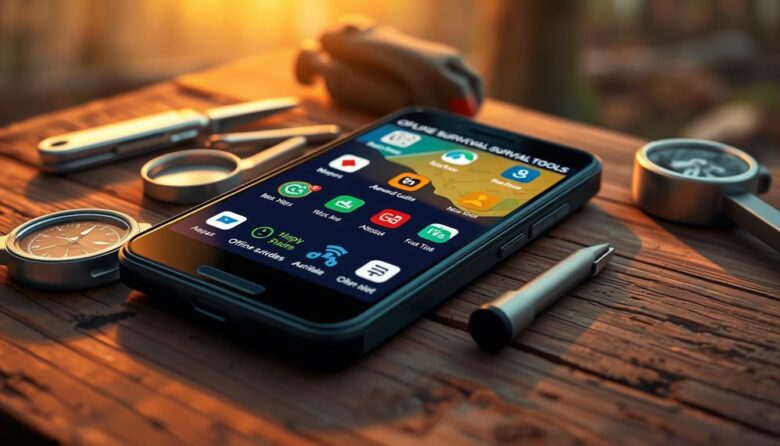
Your phone can act like a multi‑tool in a crisis. It combines onboard sensors, a camera, and compact apps so you are not fully tied to the internet when time matters. Pre-downloading maps, medical guides, and language packs turns a regular device into a compact kit.
This short guide shows how to build a simple list of apps and features for navigation, first aid, navigation, and situational awareness. Avenza Maps and Google Maps save areas for use without signal. Kiwix brings Wikipedia content to your device. The Red Cross first aid app gives clear steps when help is delayed.
Key benefits: offline access, clear instructions, reliable performance, and easy interfaces. Your camera can ID plants and animals, document damage for insurance, or capture police details. Encrypted messengers help during emergencies.
Read on to learn why offline access matters, how apps were chosen, top categories, power tips, and practice workflows in this survival guide.
Why Offline Matters When Emergencies Cut Internet, Cell, and Power
Disasters can cut cell service and power fast; preparing local data ahead of time keeps critical information within reach.
Storms, wildfires, earthquakes, and grid failures often sever internet and cell links. That loss makes apps with strong offline features vital for finding routes, medical steps, and shelter. GPS still works without a data plan, so saved map tiles let you keep direction and location awareness when towers are down.
Enable built‑in alerts and weather notifications, but do not rely on them alone. SMS can often pass through degraded networks and uses less battery than calls, so it is a practical way to share status and coordinates during prolonged emergencies.
Prepare first aid guides, checklists, and map areas in advance. Use low‑power strategies, carry solar banks, and disable high‑drain features to stretch battery life. Prioritize apps with cached tutorials, stored data, and local storage so your phone becomes a dependable aid, not dead weight, when a disaster hits.
How We Chose: Survival-grade apps, offline access, storage footprint, and value
We rated each app for clarity under stress and reliable on‑device access. That meant testing guidance, maps, and checklists with data and Wi‑Fi turned off to confirm they still work. We favored apps that put critical information up front and minimize taps.
Storage mattered. Large data packs like compressed encyclopedias can use tens of gigabytes, while map tiles and medical files vary by region. We balanced essential content against total storage so the device stays usable.
Cost-to-value guided choices. Many apps are free or offer tiers, and small paid upgrades often unlock vital features. We weigh long-term utility over sticker price for true readiness.
Other criteria included update frequency, clear changelogs, and consistent performance across devices. Built-in phone functions — SMS, camera, and Medical ID — were treated as part of the system.
Checklist for evaluation: confirm offline toggles, check storage usage, test import/export, read documentation, and note power consumption under real weather and emergency conditions.
offline survival tools smartphone
Prioritize reliable on-device content and clear, fast features that work without a network. Start by identifying the specific content you must reach: regional maps, first-aid steps, and deep-reference packs.
Core capabilities to prioritize for true offline readiness
Select apps that offer searchable on-device content, stable performance with no calls home, and low-power modes. Confirm breadcrumb tracking and GPX export work without cell data.
Pre-download workflows: maps, medical guides, language packs, and data
Save Google Maps areas and download Avenza tiles for likely routes. Install ARC First Aid and store its guides on the device. Use Kiwix to add Wikipedia or WikiMed packs, choosing only needed regions to limit data and storage use.
Organize downloads by category—maps, medical, reference—and label them clearly. Finally, test each app in airplane mode to verify true access before you need it in the field.
First Aid On Hand: American Red Cross and medical guides that work offline
Keep concise medical guidance at your fingertips so a clear action plan is ready when minutes matter.
The American Red Cross First Aid app gives short, step-by-step instructions for common injuries and conditions. It can place a 911 call or locate nearby hospitals from inside the app, and its content is available offline for quick access.
First Aid: American Red Cross — step-by-steps, checklists, and 911 integration
Use the ARC first aid app for clear checklists and concise guidance that helps you move decisively under pressure. Save local hospital contacts in the app, validate emergency numbers, and learn how to call from within the interface before you need it.
SAS Survival Guide — on-device content and practical utilities
The SAS survival guide app (paid) stores full text and handy utilities like a sun compass and Morse code signaller. These built-in features work without a network and supplement medical information with practical field methods.
Kiwix + WikiMed — compressed medical encyclopedias for deep reference
Kiwix lets you download WikiMed or selective Wikipedia packs so you carry detailed medical information on the device. Download targeted topics, bookmark commonly used pages, and keep short videos or illustrations local to clarify CPR and wound care.
Quick tips: practice the apps, confirm stored content, and bookmark animal bite and other high-risk entries to ensure essential aid information is one tap away during emergencies.
Navigation Without Signal: Offline maps and tracking for backcountry and cities
A layered mapping plan—city tiles, topo packs, and a safety‑share app—keeps you moving with confidence.
Avenza Maps is the go‑to for downloadable topo maps, waypoints, and route tracking that work entirely without a connection. Pros use it for high‑detail topo charts and precise location tools in remote terrain.
Google Maps is ideal for cities and highways: save offline map areas before you travel and GPS will still show your location when cell service is gone. Save key POIs—shelters, fuel, and medical facilities—so they remain visible offline.
Gaia GPS and onX provide high‑fidelity topo, satellite imagery, and land‑ownership overlays. Use them to plan routes that avoid private property and to confirm elevation and terrain when weather affects route choice.
Cairn adds safety sharing and crowdsourced coverage spots. It lets you share an ETA with contacts and shows where coverage is likely so others know when to expect check‑ins.
Validate each app by downloading only needed regions, testing tiles in airplane mode, and using breadcrumb tracking or GPX export to retrace and share routes later. This approach reduces reliance on cell networks and saves battery when you manage screen and radio use wisely.
Stay Informed When Networks Are Spotty: Alerts, scanners, and shelters
When networks falter, timely alerts and local shelter data keep decisions clear and fast.
FEMA provides real‑time alerts for user‑defined locations and lists nearby FEMA shelters with addresses and capacity details. Enable location notifications and save multiple places you care about so alerts follow you when you travel.
Police Scanner Radio & Fire
Use Police Scanner Radio & Fire for situational awareness during unfolding events. It streams thousands of police, fire, and EMS feeds. Be selective with filters—live audio can be noisy and data‑hungry.
American Red Cross disaster apps
The American Red Cross offers hazard‑specific apps for hurricanes, tornadoes, wildfires, and earthquakes. These apps send targeted alerts, give step‑by‑step guidance, and let you send “I’m safe” check‑ins to contacts.
Build a layered alert plan: enable OS emergency alerts, install FEMA and Red Cross apps, and add local community services like CodeRED. Save key local numbers and shelter addresses inside apps so you can act fast when a warning arrives.
Practice notification settings, quiet hours, and critical override modes so true emergency messages break through. Remember, alerts speed decisions but do not replace personal observation and preparedness.
Your Pocket Library: Massive offline knowledge banks
Turn your phone into a compact reference library so critical information stays with you when connections fail.
Kiwix installs as a lightweight app that stores full web archives on-device for quick, searchable access. You can download all or part of Wikipedia, WikiMed, and other sites as ZIM files.
The full compressed English Wikipedia is roughly 22.14 GB, so plan storage and pick what matters. This trade-off removes some media but keeps essential text and diagrams for practical use in a disaster.
Kiwix — compressed encyclopedias and focused packs
Choose selective downloads like WikiMed for medical depth or topic-specific ZIM files to save space. Organize files into folders and bookmark critical pages to cut search time under stress.
Test the app in airplane mode and run periodic update checks when you regain connectivity. Pair these references with hands-on practice so knowledge is retained and applied when it matters most.
Field Identification: Plants, animals, and fungi with your phone’s camera
Use your phone’s camera to confirm local species quickly and reduce risk when you travel. Two focused apps make this practical: Seek by iNaturalist and PlantNet. Both let you gather useful information that supports safer choices in the field.
Seek by iNaturalist
Seek provides rapid, camera-based ID of plants, fungi, and animals. It can queue photos offline and process them when you reconnect, which preserves observations during an emergency.
The app admits uncertain matches to avoid false positives, a safer approach for foraging decisions.
PlantNet
PlantNet raises accuracy by combining multiple photos — leaf, bark, and flower — to reduce misidentification. This multi-photo workflow helps with lookalike species and improves your confidence before using any wild plant.
Practical tips: take clear, well-lit shots from multiple angles. Pre-download any available packs and test both apps in airplane mode. Cross-check app IDs with offline field guides and catalog observations to build a personal reference.
Teach family members to use these apps responsibly. Camera-based identification aids navigation and hazard avoidance, but always pair it with conservative fieldcraft and authoritative guides before consuming or handling unknown species.
Communication & SOS: Private messaging, emergency contacts, and ICE
Set up secure messaging and locked-screen medical details now so responders and family can act fast. Configure a clear plan for who you contact, how you send a location, and how to trigger SOS calls under stress.
Signal: encrypted text, voice, and video that handles weak networks
Install Signal as your primary secure app for text, voice, and video. It uses end-to-end encryption and performs well with intermittent connectivity.
Practice sending short status messages and your GPS coordinates so the workflow is second nature when cell coverage dips.
Lock-screen Medical ID and Emergency Information
On iOS, open Health > Profile > Medical ID > Edit and enable Show When Locked and Share During Emergency Call. On Android, go to Settings > About Phone > Emergency Information and enable Emergency Location Service.
Store allergies, medications, and concise first aid notes in the Medical ID so responders can view them without unlocking the phone.
Emergency SOS and ICE best practices
Learn the hardware button sequence for Emergency SOS on your phone so you can place a call quickly. Add labeled emergency contacts and an ICE message on the lock screen when possible.
Back up contacts and keep a minimal offline list in case cloud access is lost. Coordinate with family so everyone uses compatible apps and understands check-in procedures.
Tip: Use encrypted messaging as your primary secure channel, but keep SMS and voice as fallbacks. Practice Signal and built-in SOS workflows until they feel automatic.
Utilities That Act Like Gear: Compass, sun path, notes, and storage
Every device benefits from a small set of utility apps that replicate classic gear: compass, sun planner, and a notebook.
Compass apps and iOS Compass
Use the built‑in iOS Compass when possible and pick a trusted third‑party compass for Android, such as Compass Steel 3D. Confirm calibration and set true or magnetic north to match your map or GPS. Lock in local declination so bearings remain accurate.
Choose a compass app with minimal permissions and no trackers to save battery and protect privacy. Periodically recalibrate and run quick checks before field use.
Sun Surveyor for planning daylight windows
Sun Surveyor visualizes sun and moon paths, sunrise/sunset times, and remaining daylight. Use it to plan hiking windows, photo shoots, or to estimate solar charge windows for a power bank.
Visual planning reduces guesswork in changing weather and helps time moves to safer daylight. Practice reading the display so decisions are fast under pressure.
Notepad, Camera, and Calculator for documentation
Keep a simple Notepad for routes, supplies, and contacts. Use the Camera to document scenes and the Calculator for quick estimates like fuel or distances. Store notes and photos on the device to build an audit trail for claims or after‑action reviews.
Practical tips: organize notes into categories (routes, supplies, contacts), test these utilities in airplane mode, and run calibration checks for the compass. These small apps complement your navigation suite and serve as everyday stand‑ins for physical gear.
Vehicle and Winter Readiness: Road incidents and cold-weather survival
When winter driving turns hazardous, a simple mix of apps and on‑hand gear can keep you safer and more visible.
Winter Survival Kit helps calculate safe engine run time, find your precise location, and advise when to run the engine briefly to conserve fuel while reducing carbon monoxide risk.
Use digital help to validate repairs and log incidents
RepairPal gives fair price estimates and shows nearby mechanics so you avoid overpaying when stranded. Save preferred service locations inside the app to speed a response.
iWrecked records accident details, timestamps unlimited photos, and generates a ready-to-send PDF for insurers. That report simplifies claims and documents damage immediately.
Practical checks: power, tracking, and rehearsed actions
Share your location with trusted contacts and enable limited tracking so rescuers can find you if visibility drops. Pre-download maps for rural routes and mountain passes where coverage is unreliable.
Keep a vehicle charger and a charged power bank for sustained phone operation. Pair these digital resources with a physical winter kit—blankets, water, shovel, and first aid—to cover gaps when the battery dips.
Practice what to do if trapped: run the engine intermittently, clear the exhaust, signal for help, and check apps and contact lists before the season starts.
Power, Storage, and Permissions: Make offline apps reliable when it counts
Treat power, storage, and permissions as a single system that determines device reliability. A short checklist now prevents failures when an emergency arrives.
Battery strategy: carry a quality solar power bank and two cables (short and long). Enable low‑power modes, stop background refresh, and close high-drain apps to extend runtime. Remember that cell radios draw the most power; prefer GPS and local content when possible.
Storage tradeoffs: map tiles and full encyclopedias compete for space. Pick selective region packs and media‑light downloads. Organize batches (home, work, evacuation routes) and label them so you can find critical data fast. Run periodic audits to archive old tracks and remove stale files.
Privacy hygiene: deny excessive permissions. Avoid compass or navigation apps that request contacts or calendar access. Uninstall invasive apps and choose tracker‑free utilities that perform offline. Test every app in airplane mode to verify true local access.
Practice tip: make a dedicated emergency folder of essential apps and files. Verify power bank performance in cold weather and rehearse the workflow so the device stays useful when it matters most.
Pro Tips: Practice workflows now so they’re second nature later
Run timed practice sessions that mimic real incidents so your chosen apps help you react fast.
Set aside short blocks of time to simulate going offline and confirm maps, medical guides, and reference packs load correctly.
Practice triggering Emergency SOS, review lock‑screen ICE details, and send test messages so contacts receive them. Walk a mock route with tracking on and check the breadcrumb afterward.
Time how long it takes to find key information and rearrange bookmarks to speed retrieval. Review alert settings across OS, FEMA, and ARC so true warnings get priority.
Update downloads monthly or before trips, rehearse power‑saving habits, and share the same workflows with family. Keep a written backup of routes, contacts, and medical info so your setup performs like dependable kit in tight times.